The Process
Because LaTeX is a programming language, there are efficient and inefficient ways to go about writing a LaTeX document.
Finding a Symbol
LaTeX is a complete language with a vast number of commands. Memorizing standard commands is helpful, but it is more important to be able to look up commands efficiently. The following are a few trustworthy sources for finding symbols and commands.
Overleaf’s List of Greek letters and math symbols.
Detexify, https://detexify.kirelabs.org, a web application (also a mobile app) that tries to identify a command based on a drawing.
When in doubt, use a search engine with a plain-English description of the symbol.
For example, to find the command for \(\otimes\), searching latex symbol circled times leads to the correct command \otimes.
Problem 11
Below is a short passage about set theory. Under Subsection 2.4 (Definitions and theorems), reproduce the passage as closely as possible in LaTeX, matching the displayed equations and formatting.
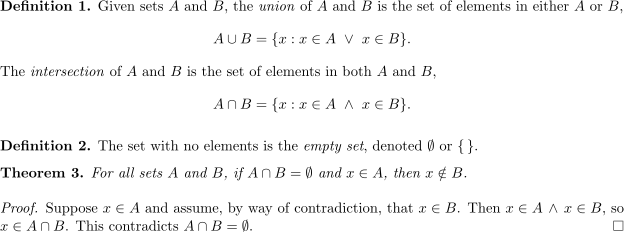

Hint: Use the lookup strategy described above to find relevant commands for the terms “union”, “logical or”, “intersection”, “logical and”, and “empty set”.
Macros
A macro is a reusable user-defined command, usually placed in the preamble.
Macros in LaTeX play a role similar to functions or shortcuts in other programming languages.
The standard way to define a macro is with \newcommand{}{}, where the first {} group contains the command name (including the backslash) and the second {} group contains the code that the command expands to.
\newcommand{\umbridge}{I must not tell lies. }
A macro can also take arguments, referred to inside the definition as #1, #2, and so on, with the number of arguments given in square brackets.
\newcommand{\Umbridge}[1]{I #1 must not tell lies. }
With these two lines in the preamble, the macro shortcuts are available anywhere in the body.
\umbridge

\Umbridge{really}
\Umbridge{probably}
\Umbridge{definitely}

\Umbridge{ABSOLUTELY}


Case Sensitive
LaTeX commands are case sensitive.
In the previous example, \umbridge and \Umbridge{} are two different commands.
Macros save typing, but their real value lies in enforcing consistency.
Editing \newcommand{}{} updates every use of the command throughout the entire document without using Find and Replace.
For example, what would happen in the previous example if the second macro were replaced with the slightly different definition \newcommand{\Umbridge}[1]{I #1 must tell lies. }?
Don’t Go Overboard
Macros can be very helpful, but defining a large number of custom macros can make LaTeX code difficult to read. Use macros, especially if you find yourself using Find and Replace often, but do not use so many that other humans (including your future self) cannot easily interpret the code.
Problem 12
Write a macro for changing the text color.
Add
\usepackage{xcolor}to the preamble.Define a custom color in the preamble with
\definecolor{byuroyalblue}{RGB}{0, 61, 165}. Now{\color{byuroyalblue}your text here}will color the enclosed text the specified color.Use
\newcommand{}[]{}to define a macro called\note{}that takes one argument and colors that argument usingbyuroyalblue.
Test the macro by wrapping the text under Introduction with \note{...}.
Hint: If the text after the introduction also changes color, try adding another pair of braces { } inside the macro definition.
Submitting This Lab
Most labs in this course are submitted as Python notebooks and graded automatically. For this lab only, submit the PDF file generated by your LaTeX document. First, add the LaTeX source code to the document PDF with the following steps.
Add
\usepackage{listings}to the preamble.Add the following lines to the end of the document, immediately before
\end{document}.
\newpage
\appendix
\section{Document Source Code}
\lstinputlisting[
    language={[LaTeX]TeX},
    breaklines=true,
    basicstyle=\ttfamily\small
]{\jobname.tex}
If needed, replace \jobname.tex with the exact name of the LaTeX file being compiled.
(This is not a very typical LaTeX action; it is used here for grading purposes.)
Next, click the download icon above the PDF preview (near Recompile), then upload the file to Gradescope.