Exercises
Problem 0
Register an account with Overleaf and start a new project.
Go to overleaf.com and click Register. Create a free account with your university email.
You may also use an existing account if you have one.From your dashboard, click New Project \(\rightarrow\) Blank Project, give it a name, and open it.
Problem 1
Customize the title block of your new LaTeX project.
Use
\title{}to set the document title toEMC2 Lab 1: Introduction to \LaTeX.Use
\author{}with your first and last name, followed by\\ Department of Mathematics, Brigham Young University
(all within the curly braces). The\\command inserts a newline.Use
\date{\today}, which automatically sets the date to the current day.
Recompile the document and make adjustments as needed.
Problem 2
Add some dummy text to your document with the following commands.
Add
\usepackage{lipsum}to the preamble.Add
\lipsumon a new line between\section{Introduction}and\end{document}.
Recompile the document, then format the page settings as follows.
Set the default font size to 11pt.
Set all margins to 1 inch.
Recompile the document and ensure that the formatting changes were applied.
Problem 3
Add sections and subsections to match the following outline.
Introduction (without a number)
1Mathematics1.1Equations1.2Common notation1.3Vectors, matrices, and arrays
2Page elements2.1Lists2.2Figures2.3Tables2.4Definitions and theorems
Finally, comment out the \lipsum command and add \tableofcontents on a new line just after \maketitle to automatically generate a table of contents listing the numbered sections.
Problem 4
Under the section Introduction, write two to three sentences about yourself, including your hometown, your current major, and a few of your hobbies and interests. Bold your hometown and major, italicize your hobbies and interests, and underline the last word in each sentence.
Problem 5
Add \usepackage{amsmath} and \usepackage{amssymb} to the preamble of your document.
Then, under Subsection 1.1 (Equations), recreate the following unnumbered equations.


Problem 6
Under Subsection 1.2 (Common notation), solve the following problems. Show each step.
Let \(f(x) = 3x^4 - 5x^2 + 2x - 7\). Compute \(f'(x)\) and \(\int f(x)\,dx\).
Let \(g(x) = x^3 \cos(x)\). Compute \(g'(x)\) using the product rule.
Evaluate the definite integral \(\int_0^2 (3x^2 - 4x + 1)\,dx\).
Clearly label and separate each problem as follows.
\textbf{Problem 1.} Let $f(x) = 3x^4 - 5x^2 + 2x - 7$. Then...

\textbf{Problem 2.} Let $g(x) = x^3 \cos(x)$. Using the product rule...
Problem 7
Under Subsection 1.3 (Vectors, matrices, and arrays), reproduce the following calculations.
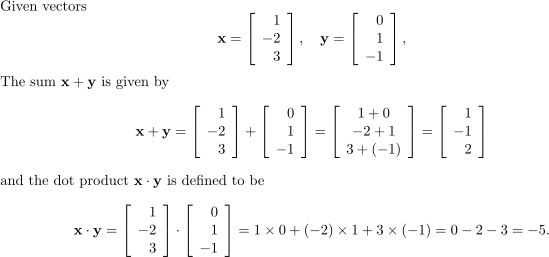
Use \cdot for the dot “\(\cdot\)” in the last equation.
Problem 8
Under Subsection 2.1 (Lists), make a list of your five favorite foods. If you have a strong ordering of preferences, use numbers; if you only have an unordered “top five,” use bullets.
Problem 9
Find a publicly available image of something from your hometown, download it to your computer, then upload it to your Overleaf project. Under Subsection 2.2 (Figures), insert a figure with the image. Set the image size to occupy 65% of the text width and add a brief descriptive caption.
Problem 10
Recreate the following table under Subsection 2.3 (Tables).
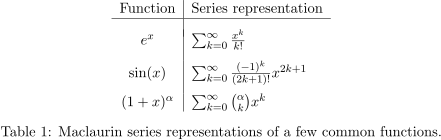
Hint: Use \\[.5em] or \\[.75em], etc., to specify the exact vertical spacing between rows (an em is a unit of measure related to the font size).
Problem 11
Below is a short passage about set theory. Under Subsection 2.4 (Definitions and theorems), reproduce the passage as closely as possible in LaTeX, matching the displayed equations and formatting.
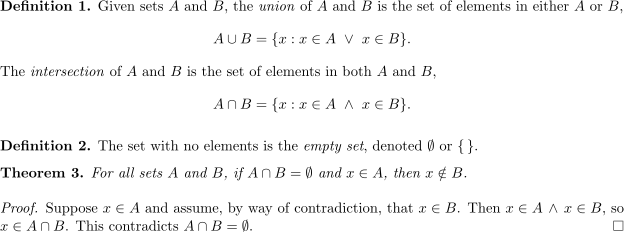
Hint: Use the lookup strategy described above to find relevant commands for the terms “union”, “logical or”, “intersection”, “logical and”, and “empty set”.
Problem 12
Write a macro for changing the text color.
Add
\usepackage{xcolor}to the preamble.Define a custom color in the preamble with
\definecolor{byuroyalblue}{RGB}{0, 61, 165}. Now{\color{byuroyalblue}your text here}will color the enclosed text the specified color.Use
\newcommand{}[]{}to define a macro called\note{}that takes one argument and colors that argument usingbyuroyalblue.
Test the macro by wrapping the text under Introduction with \note{...}.
Hint: If the text after the introduction also changes color, try adding another pair of braces { } inside the macro definition.